
Coaching call booking software for your store
Let clients choose an available time, pay when required, and receive meeting details from your CreatorStore. Connect Google Calendar, set availability, and manage bookings without a separate scheduler.
- Google Calendar sync and Google Meet integration
- Working hours, buffer time, booking limits, and timezone handling
- Free or paid calls with online payment
What types of coaching calls can you schedule?
Use the same booking flow for different 1:1 offers. Clients choose a call type and an available time from your storefront.
Strategy session
One-shot consult on a specific problem: pricing, launch, positioning, or growth. Choose the duration that fits your offer.
Mentorship
Ongoing 1:1 guidance for founders, students, creators, or professionals.
Discovery call
A free intro session to answer questions, understand the client’s needs, and decide whether you are a good fit.
Career coaching
Career changes, LinkedIn positioning, interview prep, or salary negotiation.
Fitness & wellness
Fitness check-ins, training reviews, wellness planning, or accountability sessions.
Portfolio audit
Review a portfolio, presentation, design, copy, or product and discuss feedback during the call.
Q&A / AMA
Ask-me-anything sessions for your audience — by topic or open-ended.
Executive coaching
Leadership, decision-making, or team dynamics for senior professionals.
How to set up coaching call scheduling
Set up how the call appears in your store, the booking page, call options, availability, and confirmation details. SEO settings and confirmation-email customization are also available.
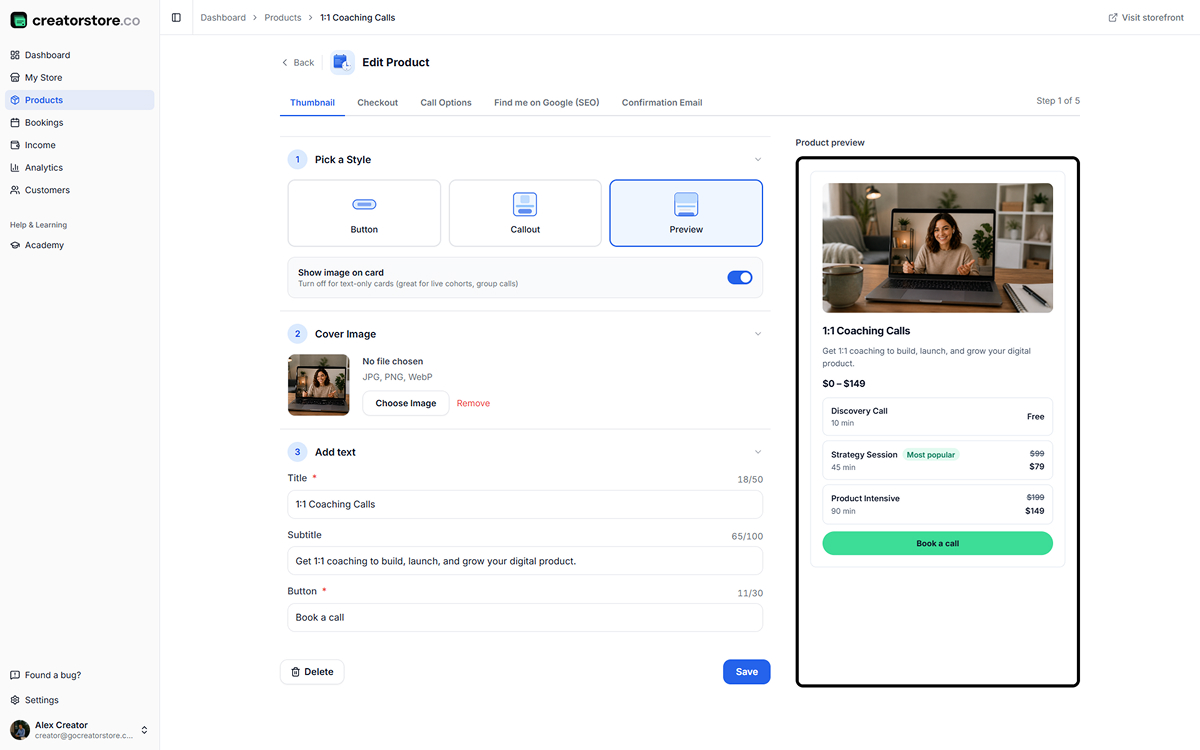
Choose how your call pack shows up
Choose a card layout, upload a cover image, and add the title, subtitle, and booking button text. Use the preview to check how the offer will look in your storefront.
- Card layout options plus a "Show image on card" toggle
- Live storefront preview updates as you type
- Title and subtitle controls
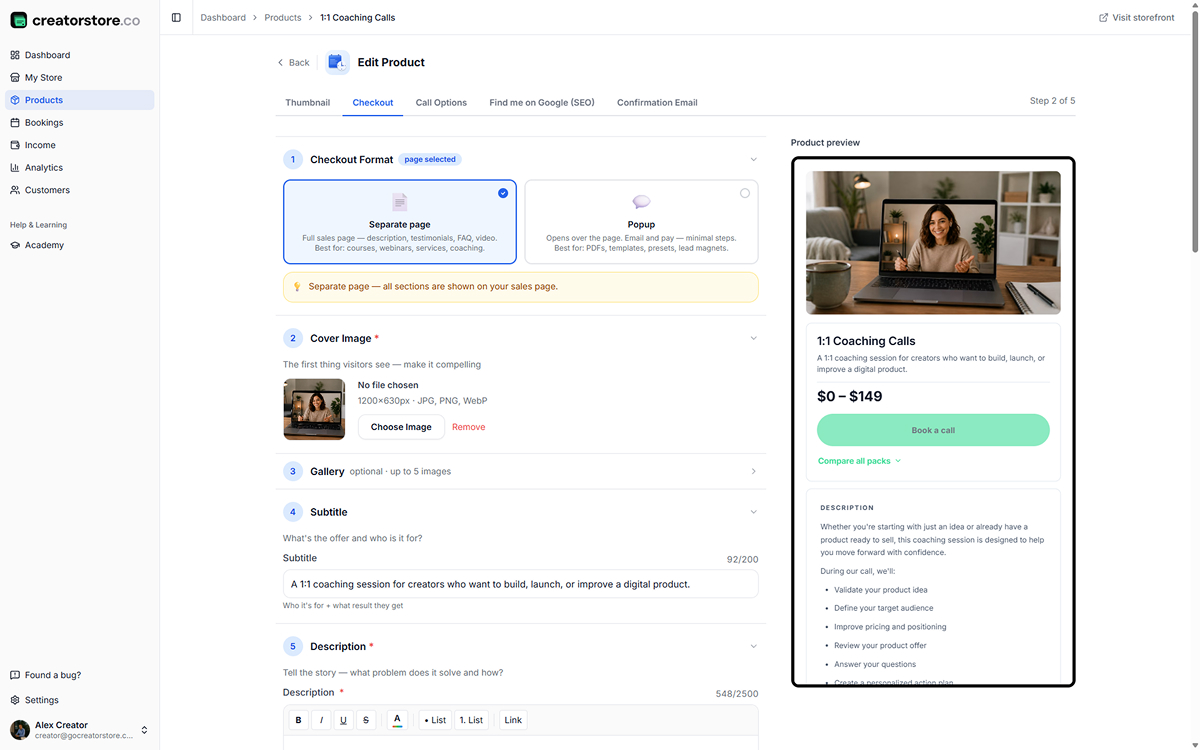
Build the sales page for your calls
Build the page clients see before booking. Add a cover, description, supporting media, testimonials, FAQ, and other available page blocks. Custom fields can collect information you need before the session.
- Separate page or popup checkout format
- Available guarantee and custom-text options
- Testimonials and supporting social proof
- FAQ for common questions before booking
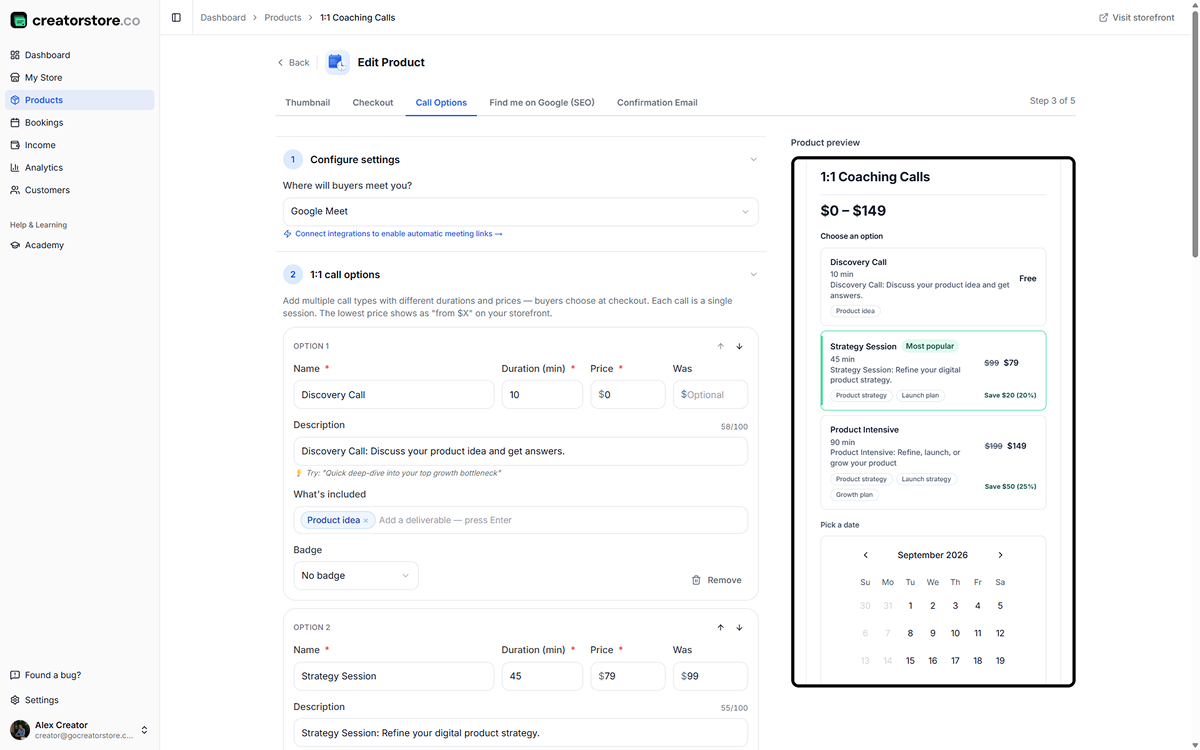
Set up call types, prices, and hours
Add different call types to the same offer and set a name, duration, and price for each. Choose Google Meet or another meeting link, set weekly availability, and add time-off overrides when you are unavailable.
- Multiple call types with per-tier duration and price
- Optional labels for call options
- Weekly availability + single-day and date-range overrides
- Google Meet auto-links, or plug in your own conferencing
- Cancellation and rescheduling rules
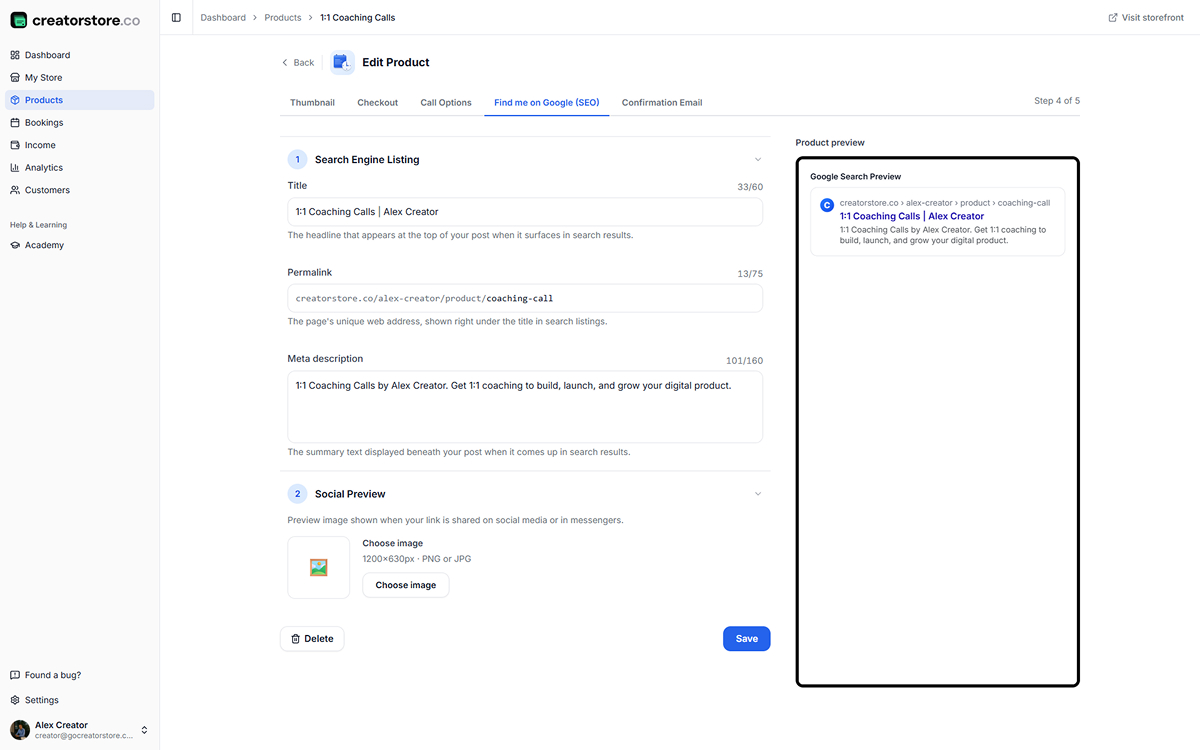
Set search and social details for your call page
Set the meta title, permalink, and description for the page. The preview helps you check how the information may appear in search and when the page is shared.
- Search snippet preview
- Social image with FB/LinkedIn/Slack preview
- Auto-generated permalink from title
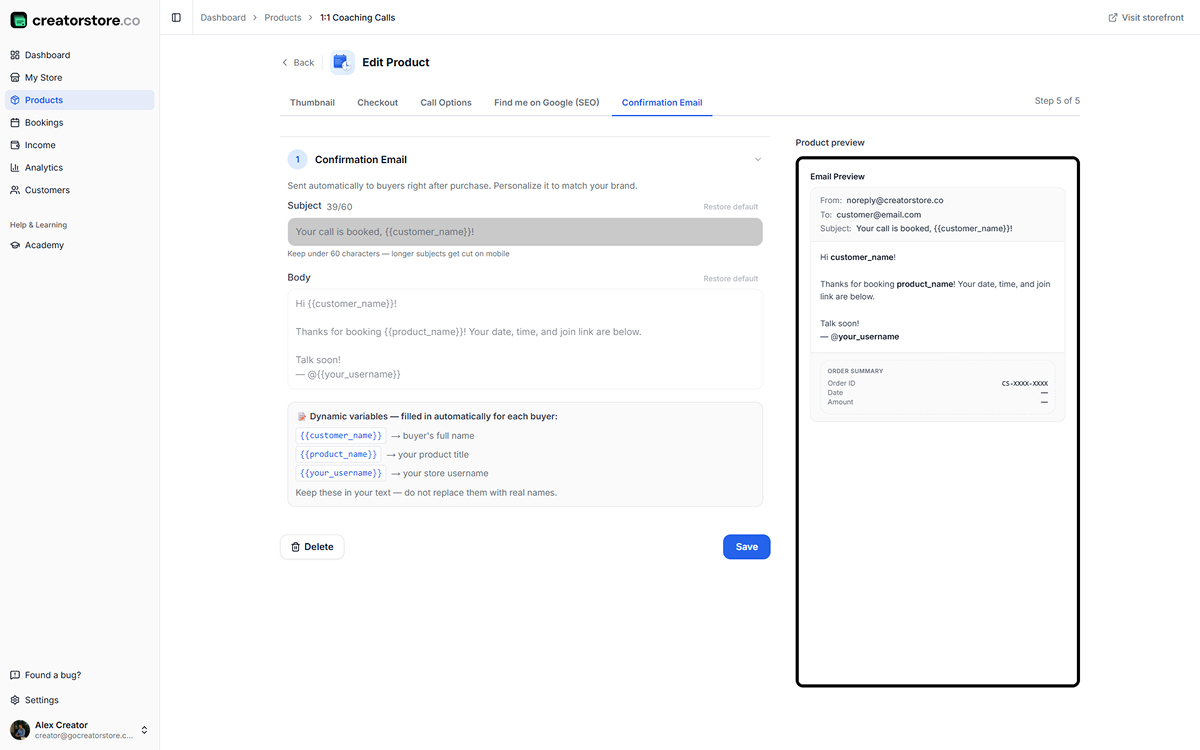
Personalize the booking confirmation
The default email includes the booking details and join link automatically. You can rewrite the subject and body and add booking variables such as {{customer_name}}, {{product_name}}. Live email preview on the right, Order Summary included.
- Dynamic variables for booking details
- Live email preview with Order Summary
- Join link, date, time auto-generated per booking
current trial offer (see Pricing for terms) · A payment card may be required; see current pricing · Set up your coaching calls in your store
How your coaching booking page looks to clients
Clients can open your coaching offer from the storefront, review its product page, and choose an available call option in the booking flow. Example: creatorstore.co/@alex-creator.
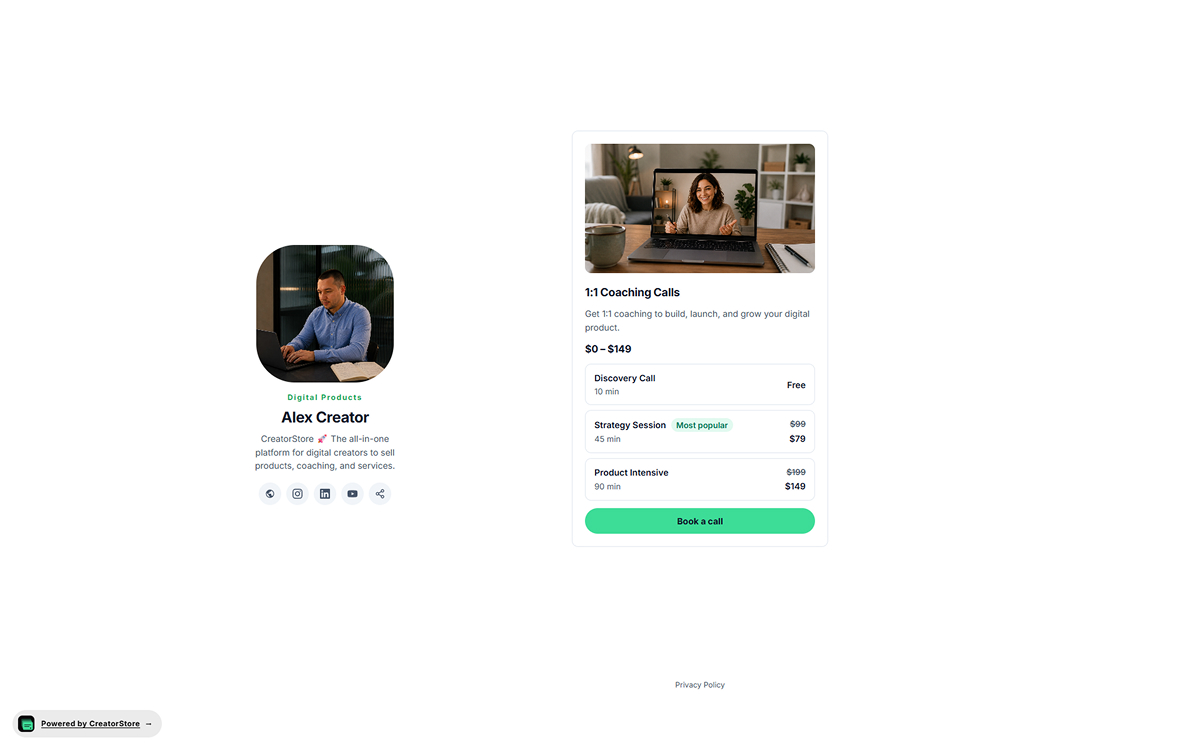
How your calls show up as a card
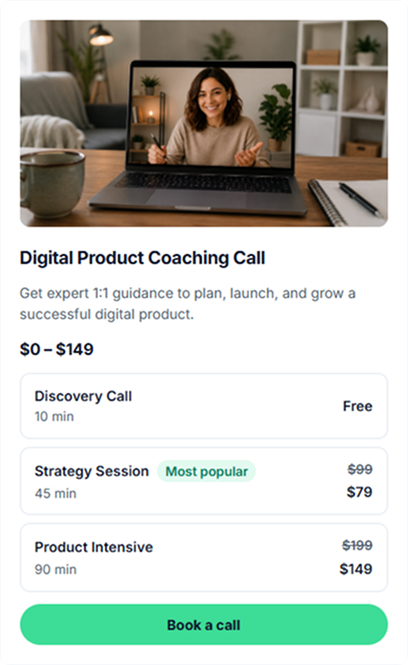
Your call pack sits on your CreatorStore page as a clean card — cover image, title, subtitle, price range, and the packs listed right there with prices and durations. Clients see the whole offer without opening anything. One tap and they're either booking through a popup or opening the full sales page.
- Different card layouts to choose from
- All packs visible on the card — no clicks to compare
- Sits inside your storefront layout — no external redirect
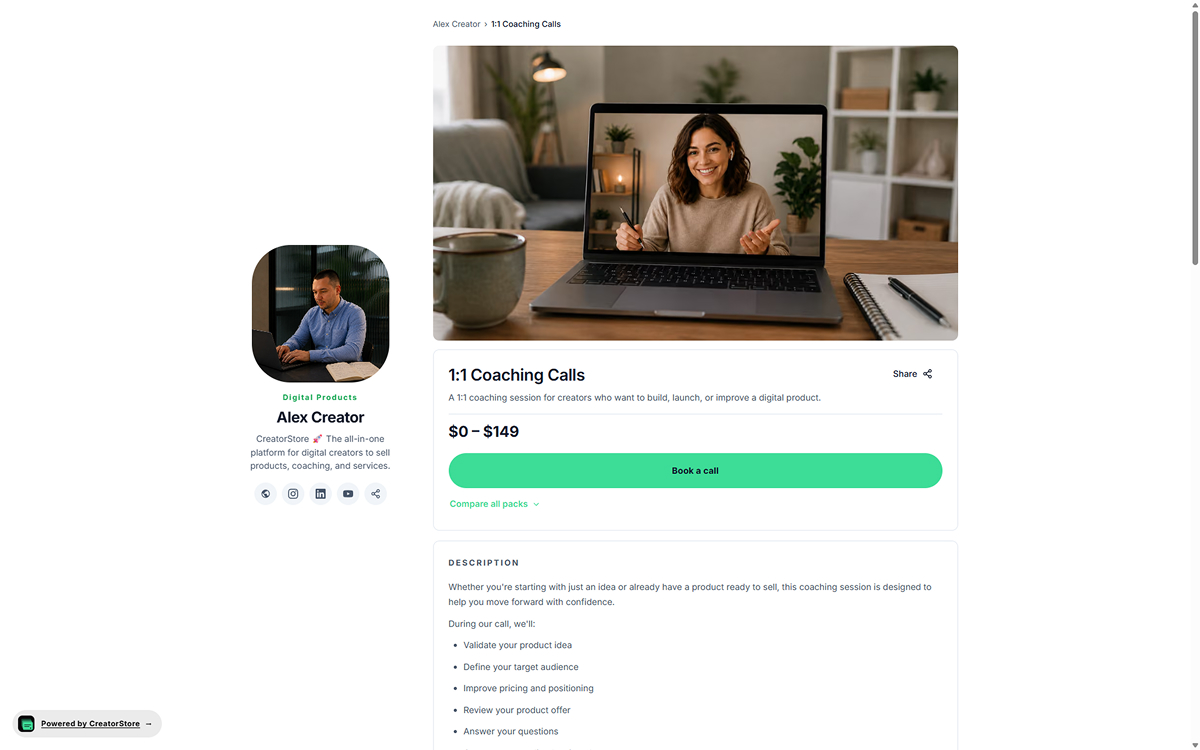
A dedicated page for your coaching offer
Your coaching offer can have its own URL, title, description, and page content. Search engines can crawl and consider published pages for indexing, but they decide whether and how a page appears in search results.
- Its own URL, own meta title and description
- Published page can be crawled and considered for indexing
- Full sales page: video, testimonials, guarantee, FAQ
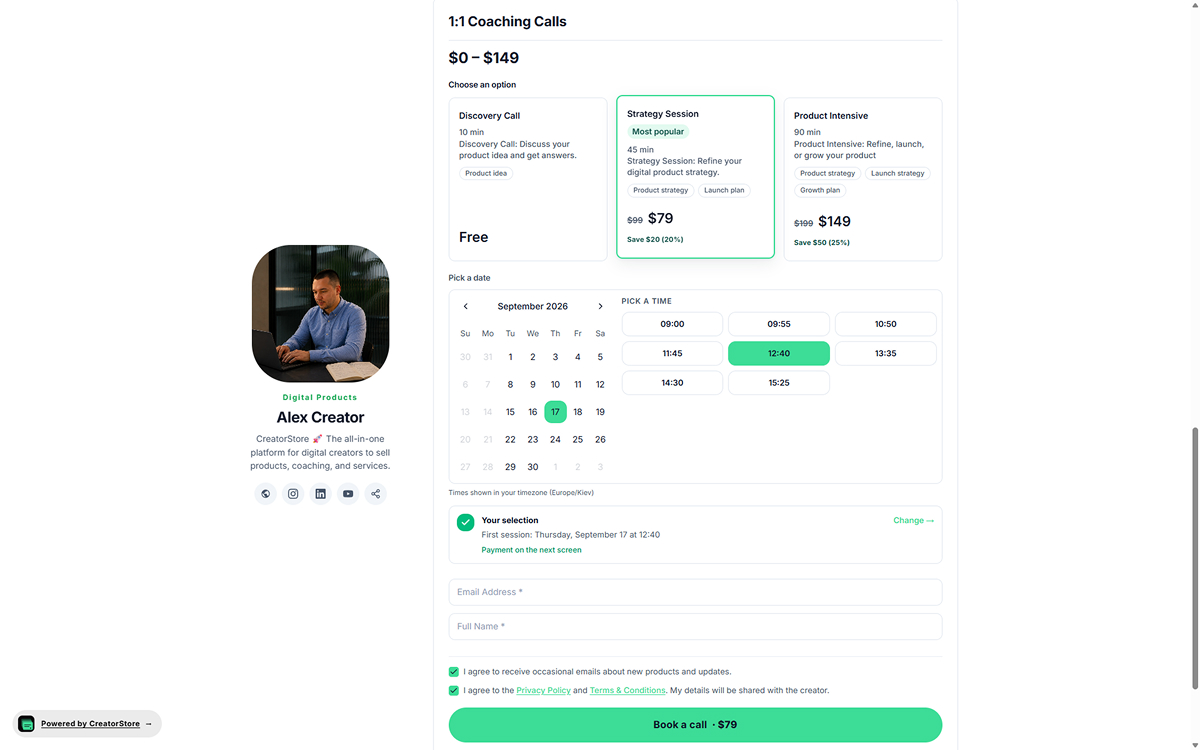
Choose a call option and an available time
Offer more than one call type when clients need different formats. The client chooses an option, date, and available time. CreatorStore handles the booking flow in the client’s timezone and collects the information required for the booking.
- Multiple call options in one offer
- Built-in calendar + time slots in the buyer's timezone
- Price information shown for each call option
- Email, name, and consent captured before booking
Example store — click around to see how coaching calls actually work
Manage your coaching calendar, bookings, and payments in one dashboard
Use the calendar and booking list to review upcoming sessions, open booking details, and manage the rules that control availability and rescheduling.
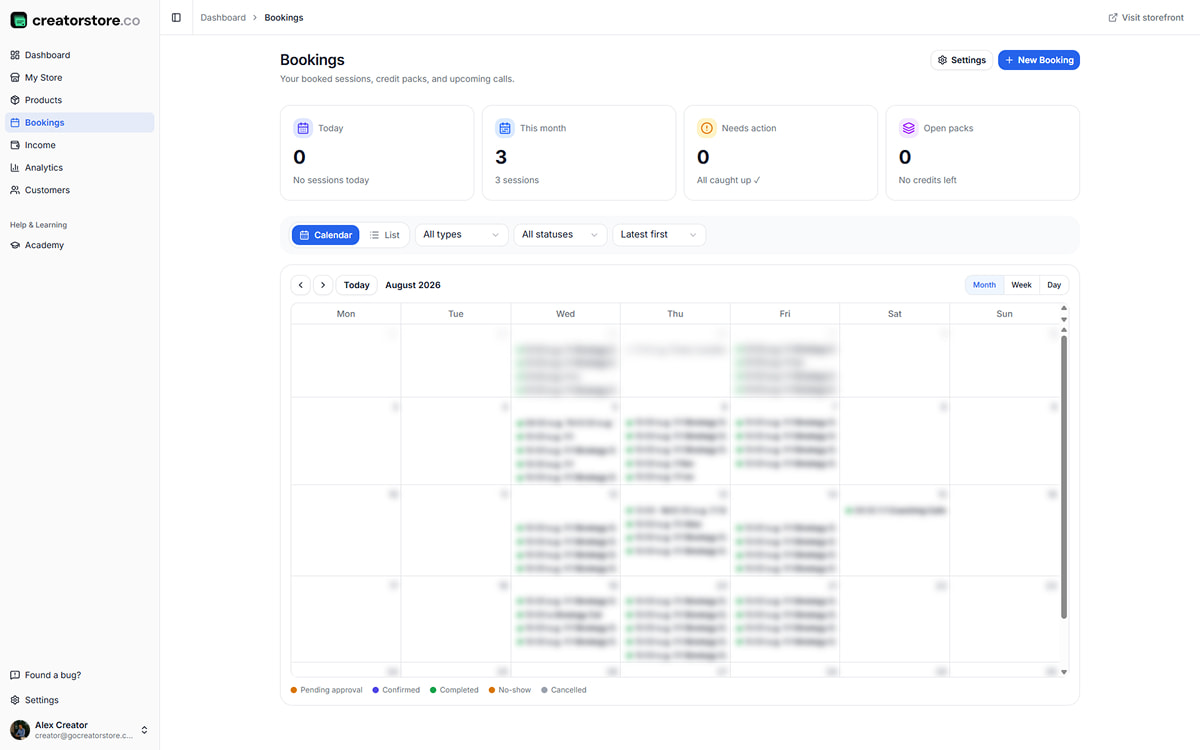
See every booking, month at a time
See your bookings in the calendar and switch between available calendar views. Booking statuses help you track what needs attention.
- Calendar views for managing bookings
- Color-coded statuses at a glance
- Booking overview with key status information
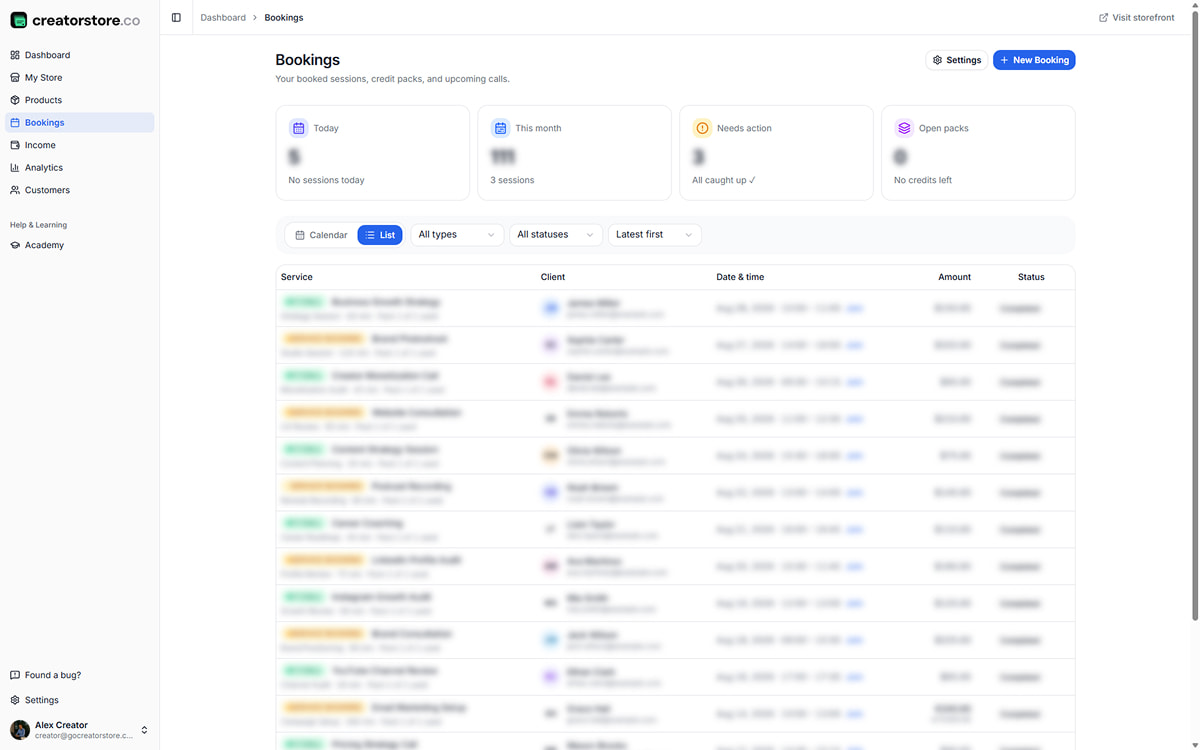
Review and filter your bookings
Use the list view to review bookings and the details available for each session, including the client, call option, time, status, and meeting link where applicable.
- Filter by service type or status
- Sort by date, client, or amount
- Join link right in the row — no digging through email
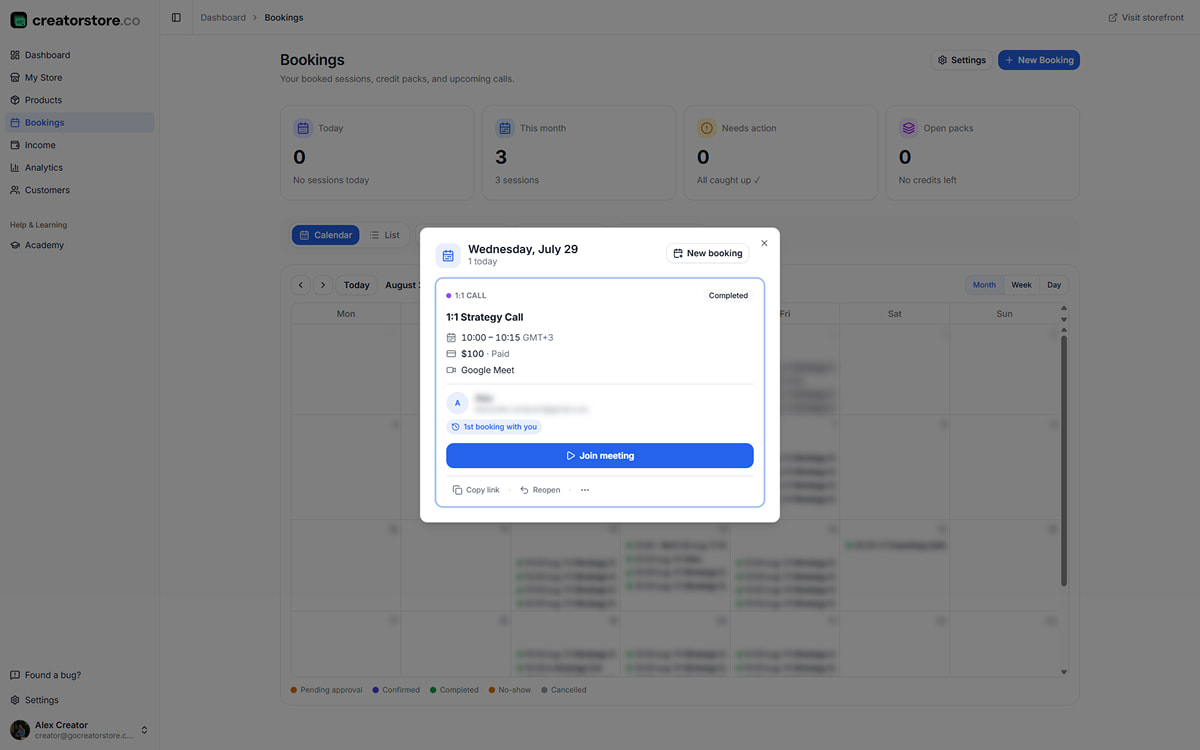
Open the details for an individual booking
Open a booking to review the client, payment status, meeting details, and available booking actions.
- Client name, email, payment status in one card
- "Join meeting" is the dominant action
- New-client indicator for booking context
- Copy link · Reopen · No-show · More
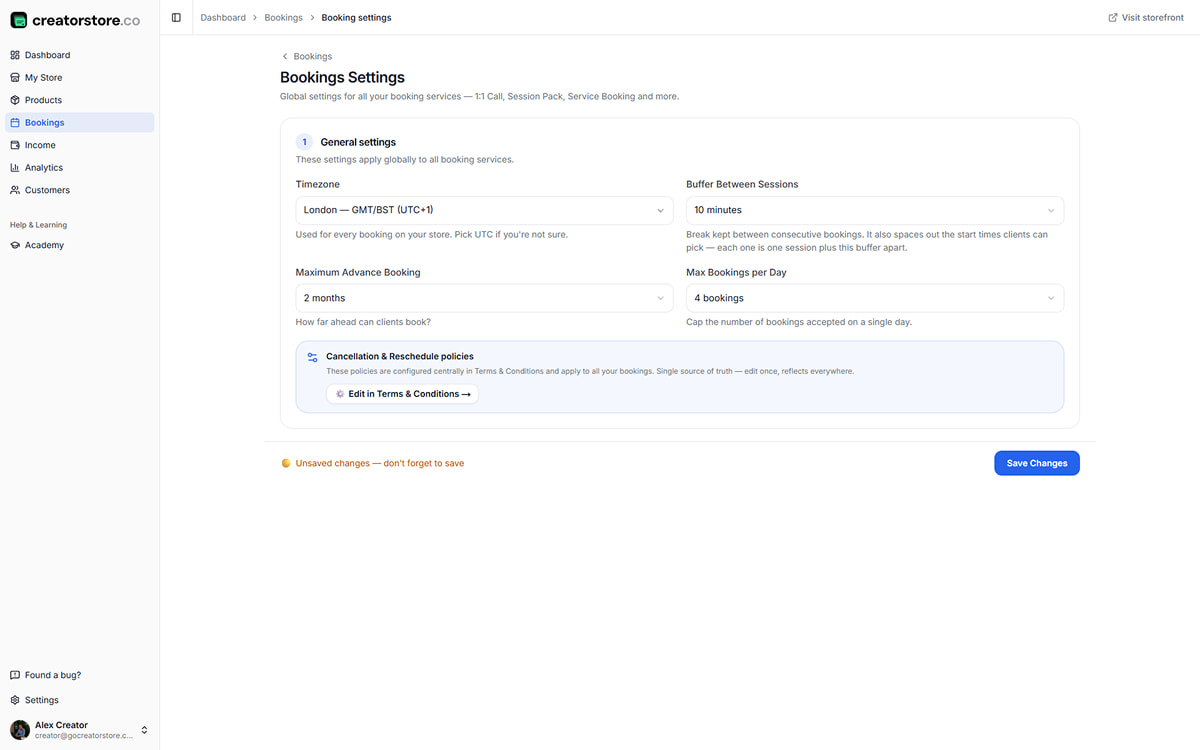
Set booking rules once — they apply everywhere
Global settings can apply to 1:1 Calls, Session Packs, and Service Bookings. Timezone, buffer between calls, how far ahead clients can book, max bookings per day. Cancellation and reschedule policies pull from your Terms & Conditions — one source of truth.
- Timezone, buffer, advance-booking window
- Booking limits to help prevent overbooking
- Cancellation policies pulled from your T&C
- Applies to 1:1 Calls, Session Packs, and Service Bookings
Calendar, booking details, availability, and rescheduling in CreatorStore
Offer free discovery calls or charge for paid coaching sessions
Offer a free Discovery Call to understand the client’s needs, then a paid Strategy Session for clients who want deeper work.
Free discovery call
Offer a free intro call to understand the client’s needs and decide whether the service is a good fit.
- ✓Free call option with booking
- ✓Email + name captured before booking
- ✓Upsell to paid pack after the discovery call
Paid coaching session
Set a price for a paid call and collect payment through the payment provider connected to your CreatorStore.
- ✓Payment connected to the booking flow
- ✓Your booking and cancellation rules
Coaching call booking FAQ
Common questions about scheduling and managing 1:1 calls in CreatorStore.
Can clients book coaching calls directly from my CreatorStore?
Does coaching call booking sync with Google Calendar?
Can CreatorStore create a Google Meet link for a booking?
Can I charge for coaching calls?
Can I set my own availability?
Does CreatorStore handle client timezones?
Can clients reschedule or cancel a booking?
Will my coaching page be indexed by Google?
See coaching call scheduling in your own store.
Google Calendar sync, custom availability, payment at booking, and automatic confirmations. Configure your coaching offer in your store.