
Add a media carousel to your creator store
Combine videos, image cards, and links in one carousel visitors can swipe through. Reorder items and choose whether supported video content plays in the carousel or opens from a thumbnail.
- Combine supported videos, image cards, and links
- Choose Player or Thumbnail behavior for video items
- Reorder carousel items while editing
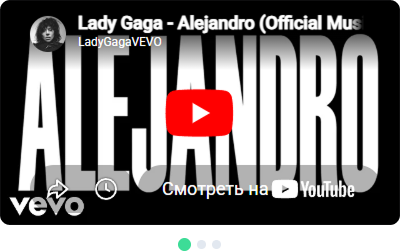
Choose how your media carousel is displayed
Use Compact, Standard, or Prominent depending on how much space you want the carousel to take on the page. You can change the presentation without re-adding the content.
Compact
Use smaller cards when the carousel needs to sit between other sections without dominating the page.
Standard
Use a balanced card size for general media, product, or content sections.
Prominent
Use larger cards when the media should be a stronger visual element on the page.
Mobile swipe
Visitors can swipe through carousel items on touch devices, while the layout adapts to the available screen width.
Use a media carousel for videos, products, and links
Use the same block to highlight video content, visual products, useful links, or a mix of media that supports the rest of your store.
YouTube series
Add supported YouTube content to keep related videos together in one section of your store.
Instagram Reels
Add supported Instagram content when short-form examples help visitors understand your work or style.
TikTok feed
Group supported TikTok content in a carousel instead of spreading individual links across the page.
Link-in-bio grid
Combine media and links when you want a more visual way to direct visitors to selected destinations.
Featured products
Use image cards with links to guide visitors to selected product pages in your store.
Loom walkthroughs
Add supported Loom content for walkthroughs, demonstrations, or explanations that benefit from video.
Podcast episodes
Collect video podcast episodes or related media in one section so visitors can browse them together.
Course preview
Show selected preview content that helps visitors understand what a course or educational product includes.
Media Carousel FAQ
Common questions about adding and arranging media in CreatorStore.
What can I add to the Media Carousel?
What is the difference between Player and Thumbnail mode?
Can I mix videos, images, and links in one carousel?
Can I reorder carousel items?
Can I change the carousel display style later?
Does the Media Carousel work on mobile?
Can carousel items link to products or other pages?
Can I use the carousel for course previews or demonstrations?
Add a media carousel to your CreatorStore
Combine videos, images, and links in one swipeable block and arrange the content to match your page.